On this page:
Handling auto-playback preferences
By default, the wikiloops player starts playing back the audio automatically when you visit a track page.
To configure the auto-play-mode, click on the gears icon right of the displayed waveform and select "disable" (or "enable") from the drop-down menu.
If auto-playback doesn't start
Browsers may block automatic playback to prevent loading files you might not want to listen to. If the wikiloops player is not starting on its own, look for the small settings icon to the left of the URL bar in your browser - most browsers let you allow autoplay for individual sites from there. On mobile devices, you may simply need to start the player manually.More player settings worth knowing
The same gears menu offers a couple of other settings worth knowing about.
Track loop
By default, the wikiloops player keeps looping the current track - once it reaches its end, playback restarts from the beginning. If you would rather have the track simply stop at the end (which can be handy when listening through a "play all" session), you may disable the track-loop option from the gears menu.
Note: this is the auto-replay setting for the entire track and is unrelated to the segment-loop function covered further down.
Waveform vs frequency analysis
The visual display on the player canvas can be switched between the standard waveform (showing the audio's amplitude over time) and a live frequency analyser (a real-time spectrum that reacts to whatever is playing). Pick whichever you prefer from the gears menu.
"Play all" mode on alternative tracks lists
Any list of tracks displayed in the "Alternative tracks" panel on the track pages features a switch to enable "play all"-mode.
Once that is enabled and the current track reaches its end, the player will move on to the next track in the results list instead of re-starting the current track again.
You may use this function to turn any type of alternative results list into a playlist.
Looping a segment of a track with the built-in range locators
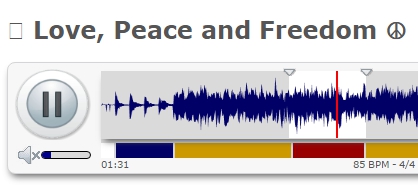
If you would like to practise a certain part of a track, you could basically click on the waveform to move the player's cursor back to some spot before the part once it is over and have another go. Or you could wait until the song has finished and restarts, and have that second attempt when the part comes back around.
Neither of those options are really convenient, so to solve this scenario, you may tell the player to repeat the desired segment of the track over and over again.
The start- and stop-positions of the looped segment are marked with the small triangular locators which sit on top of the waveform display.
The default setting is start-of-audio to end-of-audio,
but you may drag the loop range locators into the track to define the segment to loop.
 help article was written by Richard Kaiser on and last edited on
I love this place!! its all about the music&supporting eachother nothing else!! :)